
-

-
Restorer Ultimate Documentation
- Contents
- Index
- Introduction to Restorer Ultimate
- Restorer Ultimate Main Panel, Settings, and Log
- Images and Regions
-
File Recovery
- Recover Files from Existing Logical Disks
- Recover Files from Deleted/Corrupted Logical Disks and Partitions
- Disk Scan
-
Data Recovery from Volume Sets and RAIDs
- Spanned Volumes, Stripe Sets, and Mirrors
- Basic RAID 4 and RAID 5
- RAID 6 Reed-Solomon Presets
- RAID6 (Double Xor) Presets
- RAIDs with Parity Delays
- Advanced RAID Layouts
- Nested and Non-Standard RAID Levels
- Finding RAID Parameters
- Checking RAID Consistency
- Syntax of a Description File for RAID Configurations
- Description Files for RAID Configurations
- Various Disk and Volume Managers
- Data Recovery over Network
- Text/hexadecimal Editor
- Technical Information
© 2020 BitMart Inc.
All rights reserved.
Recover Files from Deleted/Corrupted Logical Disks and Partitions
File recovery from deleted/corrupted logical disks and partitions is based on hard drive scanning. You may find more information on object scanning on Disc Scan .
To recover deleted files from a deleted logical disk,
| 1 | Select the hard drive where the deleted/corrupted logical disk or partition resided on the Device/Disk list panel and click the Next button |
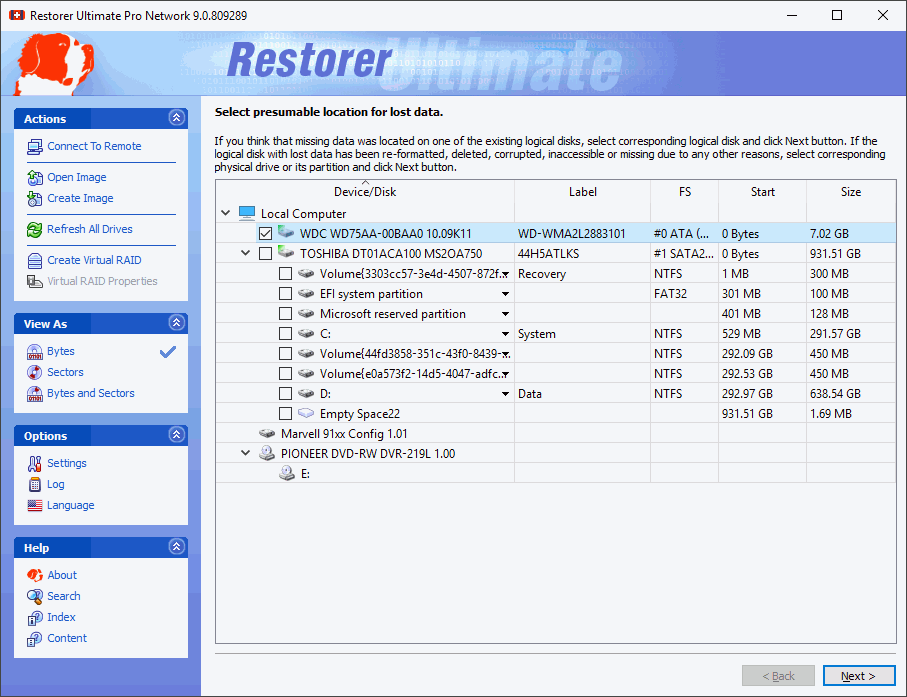
Device/Disk list panel
 Other ways to start file search
|
• Right-click the selected hard drive and select Scan on the shortcut menu , |
If there is bad S.M.A.R.T. data for the hard drive, Restorer Ultimate will show a S.M.A.R.T. warning describing the situation. You may decide what to do with the drive.
| 2 | If necessary, specify the required parameters on the Disc scan dialog panel and click the OK button |

Disk scan panel
See Disc Scan for more details on object scanning and its features and options.
| > | Restorer Ultimate starts analyzing the hard drive, and its Scan progress panel will show the scan progress: |
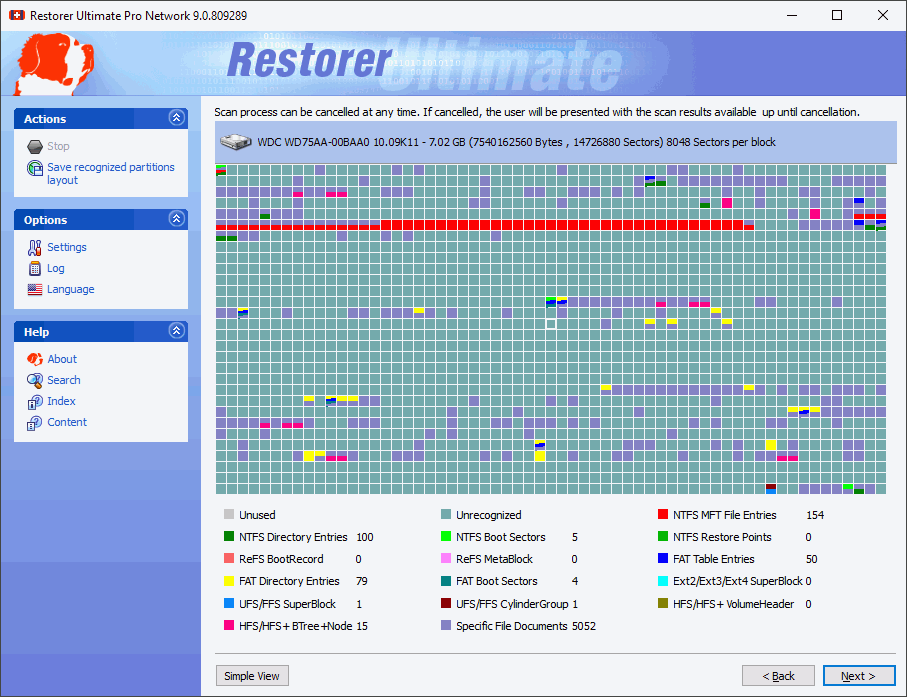
Scan progress panel
| 3 | Select the deleted/corrupted logical disk/partition where the lost files resided on the Scan result panel and click the Next button , or |
Double-click the required recognized partition
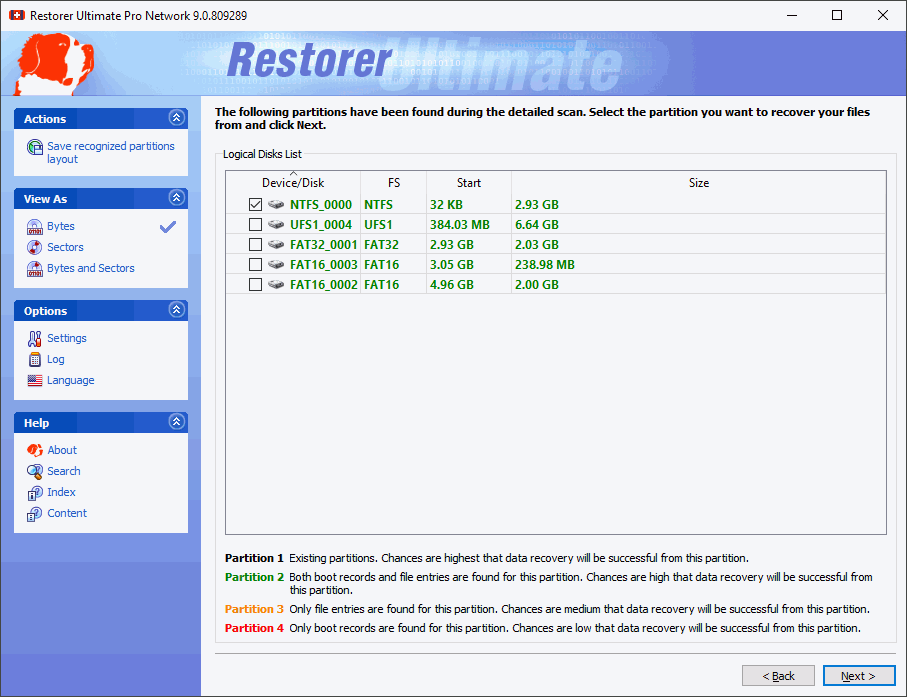
Scan result panel
You may find out which recognized partition is the right one by checking partition file systems, sizes, and starts.
You may estimate chances to recover files successfully by the color of the recognized partitions:
|
Fat16_0011 |
Existing partition |
|
Fat16_0009 |
Both boot records and file entries are found for this partition. Chances are high that file recovery will be successful from this partition. |
|
FAT32_0008 |
Only file entries are found for this partition. Chances are medium that file recovery will be successful from this partition. |
|
FAT16_0019 |
Only boot records are found for this partition. Chances are low that file recovery will be successful from this partition. |
| 4 | Perform all necessary file recovery operations starting from Step 3 on Recovering lost files from an existing logical disk . |
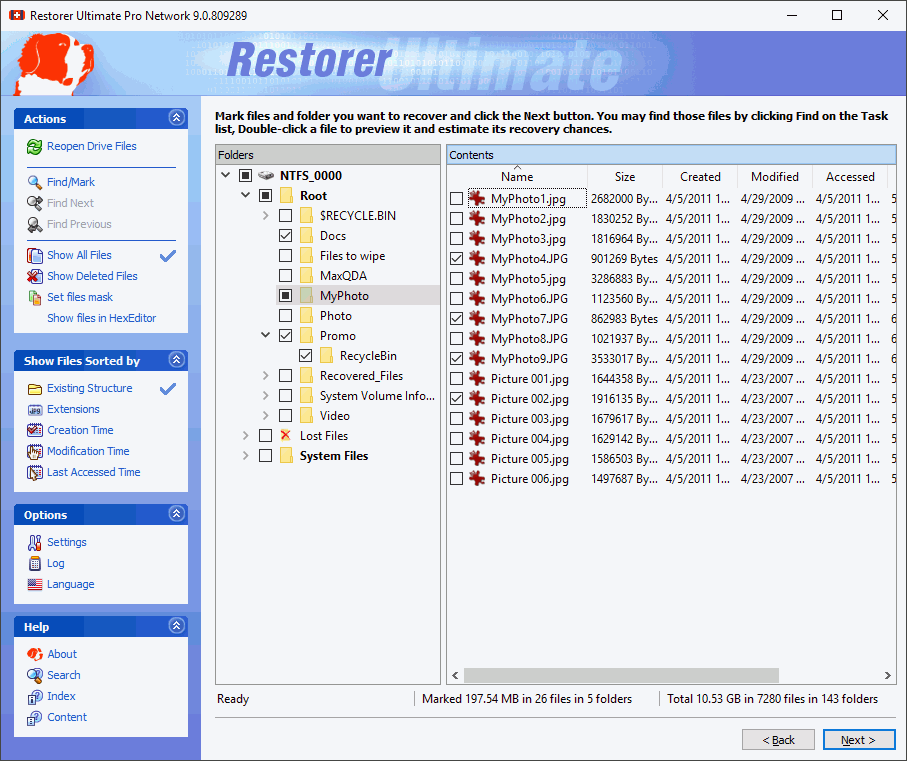
Folders/Contents panel